MCP Servers
Overview
MCP servers provide a way to expose tools that allow MCP clients to interact with the WEBCON platform in a controlled and configurable manner.
They implement the Model Context Protocol (MCP) server as defined in the specification.
In WEBCON, there are two types of MCP servers: general MCP server and application-specific MCP server.
The general MCP server is a single, shared server that exposes standard, built-in tools.
Application-specific MCP servers are associated with applications. Each MCP server runs independently and is tailored to the APIs of the application it is created from.
MCP servers are not enabled by default and must be started explicitly by an administrator.
Tools exposed by the general MCP server
This section lists the built-in tools provided by the general MCP server and summarizes what each tool returns or allows you to do.
Tool names are defined in English and are listed below in their original form.
The general MCP server exposes the following tools:
- Get current user's profile
- Get my tasks
- Get element data
- Get attachment
- Get related elements
- Get search results
- Get all search filters
- Get applications
- Get application menu
- Get favorites
- Get frequently used applications
- Search in navigation
Get current user's profile
Returns the current user's profile:
- name
- BPS ID (user's unique ID)
Get my tasks
Returns the current user's tasks. It allows filtering by new and CC tasks, and sorting by modification and creation date. It corresponds to the My tasks functionality in the Portal.
Get element data
Returns details of the specified workflow instance:
- form type, step and workflow names,
- names and values of its form fields (excluding data rows, tables, reports, widgets and HTML fields),
- list of attachments,
- comments,
- currently assigned person,
- date of modification.
Get attachment
Returns the content of an attachment. Depending on the capabilities of the MCP client, the content can be downloaded, displayed, or used for analysis and summarization by an LLM.
Get related elements
Returns instances related to a given workflow instance. This is the same data that is presented in the related instances view available in the form info panel.
Get search results
Returns workflow instances matching the provided search criteria. It should be used together with the output from Get all search filters.
Apart from accepting keywords, it allows ordering results by relevance (rank), creation date, or modification date. Optionally, a date filter can be added to specify a time range.
It also returns a search query URL. With this URL, the MCP client can suggest continuing and expanding the search in the Portal.
Get all search filters
Returns available search filters for the given keywords. The keywords should be generated by the MCP client based on the user message and search intent.
The output of this tool should be used as part of the input to the Get search results tool.
Get applications
Returns a list of applications available to the current user. For each application, it returns: ID, name, description, and URL.
This tool should be used to determine which applications are available. The returned application ID can then be used in Get application menu to read that application's menu and guide the user to a specific place in the Portal.
Get application menu
Returns the menu for the specified application ID, available to the current user. For each menu item, it returns: name, URL, ID, and type (report, view, dashboard, start button).
Get favorites
Returns the current user's favorite items.
Get frequently used applications
Returns applications frequently used by the current user.
Search in navigation
Returns navigation elements matching the provided keywords, such as applications, processes, workflow start buttons, reports, and dashboards.
Unlike Get application menu, this tool does not require a known application ID and can be used to discover navigation elements across all available applications. It is similar to Get search results, but searches the navigation structure rather than workflow instance content.
Tools exposed by the application-specific MCP server
The application-specific MCP server exposes tools derived directly from the API Definitions specific with a given application1, and does not include any other tools automatically. To be included as a tool, an API Definition must:
- be active,
- be selected to be included in MCP server tools (an option in API Definition access configuration),
- support OAuth2 authentication.
MCP tools mapping rules
The following rules apply to all MCP tools generated from API Definitions, regardless of their specific type.
- The MCP tool name is derived from the API Definition name (
{name}) and running mode:- Get data from the data source:
DataSource_{name} - Execute automation:
Automation_{name} - Actions on a workflow instance:
ActionOnWorkflow_{name}_{suffix}, where suffix depends on API Definition configuration:- get element instance data =
get - save element instance =
save - Start new workflow =
createNew - Move to next step =
{Url suffix}
- get element instance data =
- Get data from the data source:
- The MCP tool description is taken directly from the API Definition documentation.
- The input schema is generated from the API Definition input parameters, and may be extended with additional technical parameters required by REST API mapping (e.g. instance ID).
- The output schema is generated directly from the API Definition response.
API Definitions with running modes Get data from the data source and Execute automation are mapped to a single MCP tool each. Actions on a workflow instance is mapped to multiple tools (described in next chapter).
For important details about how data visibility works for tools generated from Get data from the data source, see Authentication and authorization.
| Running mode | MCP Tool Mapping | Operational Scope |
|---|---|---|
| Get data from the data source | 1 MCP tool | Read-only |
| Execute automation | 1 MCP tool | Configuration-dependent (automation definition) |
| Actions on a workflow instance | 1-N MCP tools | Configuration-dependent (API Definition) |
Tools for Actions on a workflow instance
For API Definitions of type Actions on a workflow instance, one or more MCP tools may be created, depending on the selected options supported:
- Get element instance data - one MCP tool
- Save element instance - one MCP tool
- Start new workflow - one MCP tool
- Move to next step - multiple MCP tools, one for each URL suffix defined
Note that each MCP tool will have the same description. It is recommended to add a short description of each selected option in the API Definition documentation.
Authentication and authorization
MCP servers use the OAuth2 authorization flow for authentication.
All MCP tool operations are executed in the context of the currently logged-in user. Access to tools and execution of operations are restricted according to the user's assigned roles and privileges.
This ensures that MCP server interactions respect the same security model and permission boundaries as direct platform usage.
Access restrictions
If an API Definition has an access restriction rule, that rule is also respected during MCP tool execution. A tool may be visible in the MCP client, but its execution can still be blocked for the current user. If the rule does not return POSITIVE, TRUE, or 1, the MCP tool call is rejected with the HTTP 403 status.
When additional control is required, the access restriction rule can be used to limit tool usage to selected users or groups. For example, the CURRENT USER IS ONE OF business rule can be used to allow or deny access depending on whether the logged-in user belongs to a specified group.
Even if a tool is visible in MCP client, the current user may still be unable to execute it. In that case, the call will be rejected if the API Definition access restriction rule is not met.
Data returned by data source tools
For tools generated from API Definitions in Get data from the data source mode, the data returned by the tool depends on the configured data source.
When the source uses WEBCON internal mechanisms such as WEBCON internal views, platform privileges are respected.
For other source types, such as SQL, REST, or fixed lists, the tool returns data according to the data source configuration. In these cases, results are not automatically limited by the logged-in user's WEBCON privileges.
Configuration and setup
This section outlines the prerequisites and administrative steps required to enable MCP servers, start server instances, and obtain the information needed to configure external MCP clients.
Starting the MCP server
An application-specific MCP server instance can be started from the application settings. The general MCP server can also be started there.
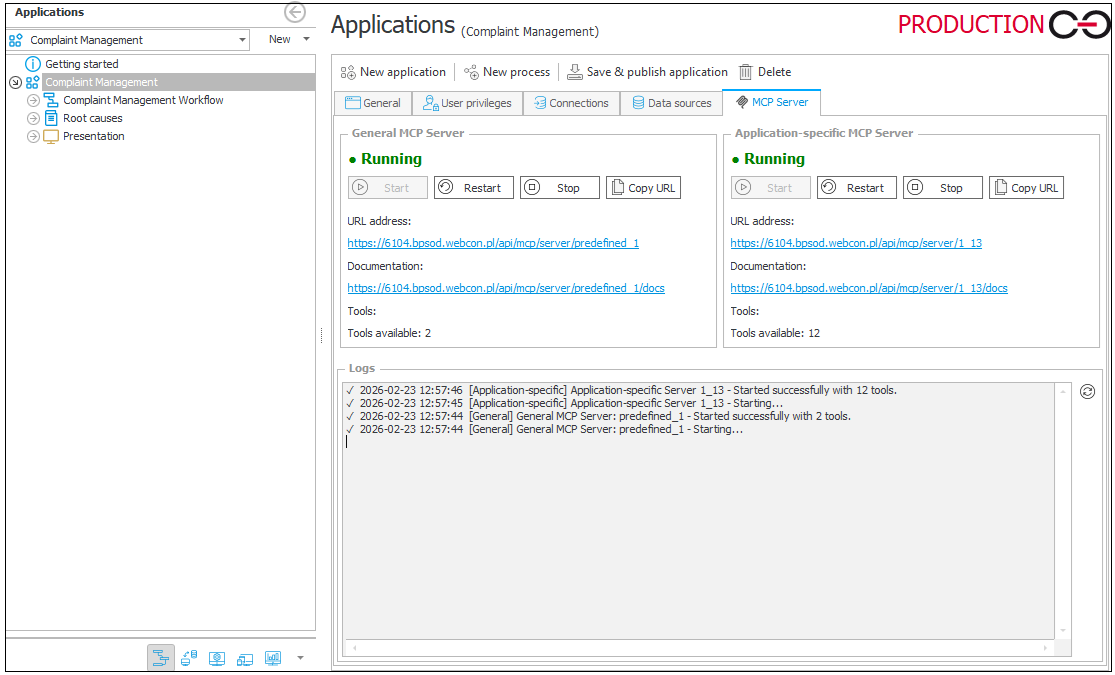
The same location is used to restart or stop the MCP server when needed.
The application-specific MCP server must be restarted after adding new API Definitions or changing names, descriptions or input/output parameters of the existing ones.
An MCP server that was running before the Portal restart will be automatically started after it restarts.
Detailed MCP server specification
Each MCP server exposes a detailed technical specification at <WEBCON portal url>/api/mcp/server/{server_id}/docs. Exact links are available on the MCP server administration page in Designer Studio.
This endpoint provides a Swagger / OpenAPI specification describing the MCP server. The specification includes detailed information about available operations, input and output schemas, supported connection methods, and required MCP client configuration settings.
This document is intended as the authoritative source for integrating external MCP clients with a specific MCP server.
Registering API application
To enable MCP server access for external applications, an API application must be registered in the WEBCON platform administration panel.
The API application of type user context and authentication type Authorization code must be configured.
Detailed instructions for registering an API application are available in the documentation
The required OAuth2 scopes will be listed in MCP Server specification after it's started.
Configuring external MCP clients
External tools acting as MCP clients must be configured to connect to a specific MCP server instance.
MCP servers support HTTP (Streamable HTTP) transport in accordance with the MCP specification.
Examples of applications supporting MCP include:
The details of the configuration of individual clients are outside the scope of this documentation — refer to the documentation of the respective MCP client.
For OAuth2 authentication to work correctly, administrators must add the redirect URL of the MCP client application to the list of registered redirect URLs in the API application configuration.
Only redirect URLs explicitly registered in the API application will be accepted during the OAuth2 authorization flow.