Sign an attachment
Action used to apply digital signatures to the attachments of the workflow instance.
The action configuration window has three tabs: Signature, File, and Result.
Signature
The tab allows you to indicate the path to the file that is the certificate (digital signature) and the password for this certificate in case such Signature is executed automatically by the server. This is most commonly a purchased certificate trusted publicly, or issued by a trusted certificate center.
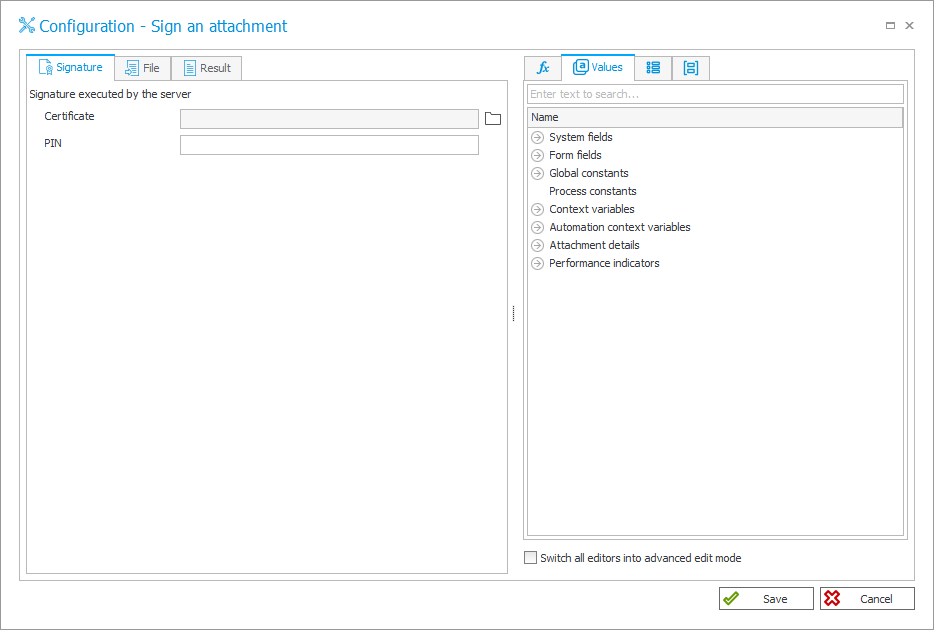
Select a digital certificate file with the Load button and provide the password in the PIN field.
File
The tab is available if the action is triggered outside the Attachment menu and allows you to define which attachments are to be processed.
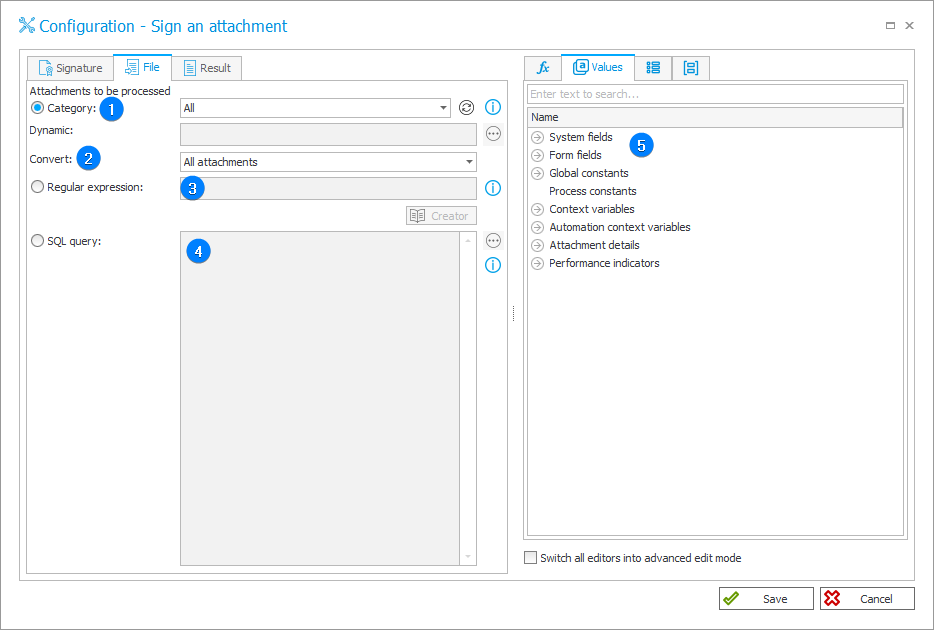
1. Category
This option allows you to specify a category for the processed files:
- All – all files that are attached to the workflow instance will be selected,
- Dynamic – the category can be created dynamically (using Variables editor) or typed in manually. The category should have the following format: ID#Name or ID,
- None – files not assigned to any category are selected.
2. Convert
The field allows you to specify which attachments are to be processed (signed). These can be all attachments, only the oldest attachment or only the newest attachment.
3. Regular expression
Search for files to process based on a regular expression. When creating such an expression, you can use the Creator tool run with a separate button available below this field. The system will process attachments whose names match the defined RegEx format.
To select right attachments, the regular expression usually needs to follow one of the general formulas presented below:
File1 or File2, example: (criterion1|criterion2)
File1 and not File2, example: ^(criterion1|(?!criterion2))
4. SQL query
The field allows for specifying source files based on an SQL query. The query should return a list of attachment IDs from the WFDataAttachmets table.
If a query returns more than one ID, only the first-on-the-list attachment is processed.
5. Variables editor
Dynamically generated tree containing all variables that may be used in the current location of Designer Studio. Information on how to use variables in WEBCON BPS, as well as a list of variables can be found here.
Result
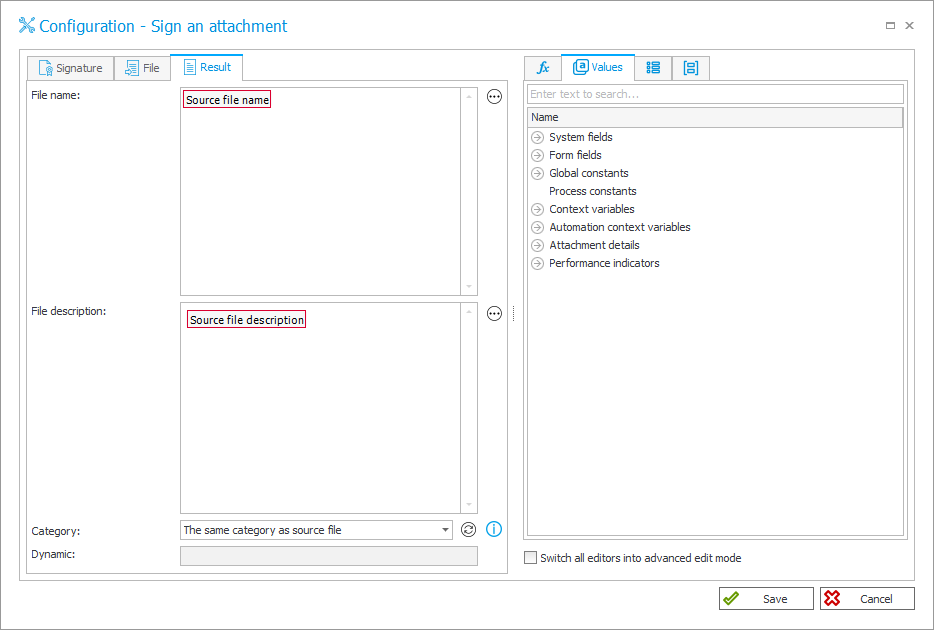
The tab allows you to specify the properties given to the file after it is processed (signed). By default, the signed file will have the same properties (Name, Description, and Category) as the source file.
In practice, when an attachment is processed by the action, a new version of that attachment is created and it replaces the old one. The new signed attachment can have a different name, description and it can be assigned to a different or new, dynamic category.
Verification and practical use
This action is most commonly used in tandem with Verify attachment’s signature. In the simplest scenario, when defined in the Attachments menu, the action will display the result of the verification to the user.

For other triggers (those that force the instance to save, e.g. On path, Upon instance saving), there are additional configuration options that allow the verification results to be saved in specified form fields.

These can be technical fields in read-only mode. The result can be saved in a Yes/No choice field, while the details and log can be placed in a Multiple lines of text field.
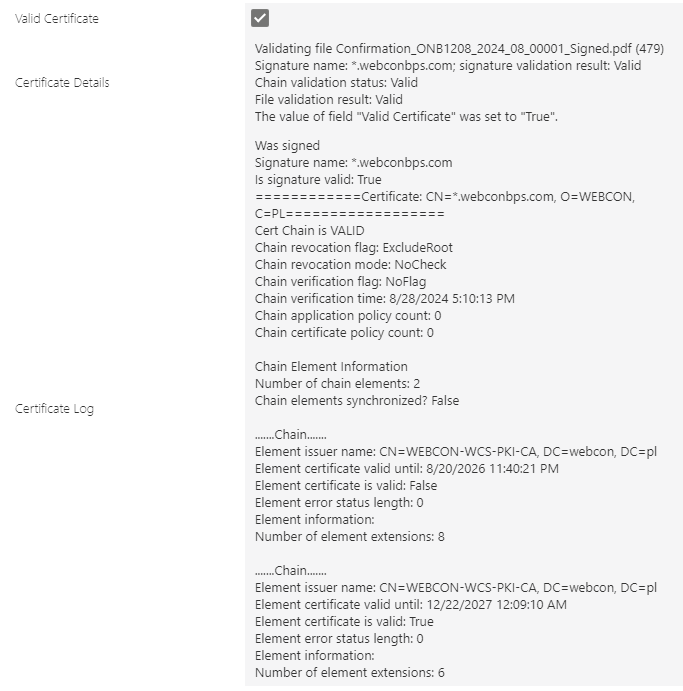
Once saved in appropriate fields, the result can then be used in comparisons that control the business logic.
Other ways to apply signatures
In addition to signatures made with server certificates, it is possible for the user to apply a personal signature, or use one of the many available external tools. These methods are described in a series of community articles.