Autenti plugin
The Autenti plugin enables WEBCON to be integrated with the Autenti platform for electronic document signing. The solution makes it possible to send a document for signature together with the attachments indicated on the workflow instance, and then redirect the user to the Autenti web application — either via an email message or a link available directly on the form.
The signing process takes place on the Autenti side. Once it is completed, the signed document can be downloaded and attached to the workflow instance in WEBCON.
The plugin (based on the SDK plugin packages mechanism) provides a set of actions and custom data sources that can be used when configuring workflows that support electronic signatures.
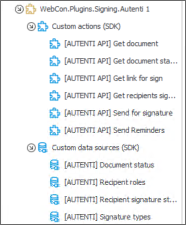
Fig.1. The Autenti plugin package with actions and data sources
Requirements
To use the WEBCON integration with Autenti, an appropriate Autenti integration license is required. Detailed licensing information should be obtained directly from an Autenti representative.
Communication with the Autenti platform is performed using a system account from which documents are sent for signature. Document signers do not need to have an Autenti account or a WEBCON license.
Correct integration configuration also requires creating REST Web Service connections to the Autenti REST API. These connections are used for authorization and communication with the Autenti service. The connection configuration procedure is described in the technical blog article Signing document with Autenti service.
Plugin scope
The plugin enables the key operations required to handle the document signing process:
- sending a document for signature,
- retrieving the document status,
- retrieving the signature status for individual recipients,
- downloading the signed document,
- retrieving the link to the document in Autenti,
- sending reminders to recipients,
- using ready-made data sources for statuses, recipient roles, and signature types.
The plugin does not replace the configuration of the business process in WEBCON. The actions must be placed in appropriate automations, for example on transition paths, menu buttons, cyclic actions, or in the Timer mechanism.
A sample workflow is described in the article Signing document with Autenti service.
Plugin actions
The actions provided by the Autenti plugin are described below.
(AUTENTI) Send for signature
This action creates a document in Autenti and sends it to the specified recipients so that they can sign it or perform another required action, such as approving or viewing the document.
The action saves the document identifier assigned by Autenti on the form. This identifier is essential for subsequent actions, as it makes it possible to refer to the same document when retrieving its status, link, or signed file version.
Attachments to be signed can be indicated based on attachment categories or an SQL query that returns file identifiers. This makes it possible to send either all attachments from a given category or only selected files to Autenti.
(AUTENTI) Get document status
This action retrieves the current document status from Autenti and saves it in the indicated form field.
The action is useful in scenarios where the process should respond to a change in the document status, for example by moving the workflow instance to the next step after signing is completed, or by keeping it in a waiting step if the document has not yet been signed.
(AUTENTI) Get recipients signature status
This action retrieves the signature or participation status for individual document recipients. The results can be saved to an Item list, for example in a column that stores the signature status of a given person.
The action compares recipient data with the rows on the Item list and updates the statuses for the corresponding people. This allows the user to track which recipients have signed the document and which are still waiting to perform their action.
(AUTENTI) Get document
This action downloads the document from Autenti and saves it as an attachment of the workflow instance in WEBCON.
The action is most commonly executed after the signing process is completed, when the document reaches the appropriate status, for example COMPLETED. It can be used on a path that verifies the document status, in an automation triggered by the Timer, or as an action available from the menu.
(AUTENTI) Get link for sign
This action retrieves a link to the document in Autenti. The link can be saved in a form field, stored on an Item list next to the relevant recipient, or used to redirect the user directly.
With this action, the user can open the document in Autenti without having to search for the email message containing the signing link.
Note that in scenarios where the document is protected with an SMS code, retrieving the link may not be possible, or the link may require additional authorization on the Autenti side.
(AUTENTI) Send reminders
This action sends a reminder to recipients who can still perform an action related to the document, for example sign it.
The action reads from Autenti the list of recipients who are eligible to receive a reminder and sends them a notification. It can be run manually, for example using a menu button, or automatically, depending on the process configuration.
Custom data sources
The plugin provides custom data sources that can be used on the form, for example in choice fields or Item list columns. This eliminates the need to manually define values that correspond to Autenti.
Document status
This source provides document statuses returned by Autenti. It can be used, for example, in a field that stores the current document status.
Sample values:
- PROCESSING
- SUCCESS
- FAILED
- WITHDRAWN
- ERROR
- COMPLETED
- REJECTED
Recipient roles
This source provides document recipient roles. The roles define how a given person participates in the document handling process.
Sample roles:
- Signer – a person who signs the document,
- Approver – a person who approves the document,
- Reviewer – a person who reviews the document,
- Viewer – a person who has access to preview the document.
The list of available roles may depend on the source configuration.
Recipient signature status
This source provides the signature or participation statuses of recipients. It can be used in an Item list column that stores the status of each person participating in the document signing process.
Signature types
This source provides the signature types available in the Autenti integration. It can be used in an Item list column that defines how a given recipient should sign the document.
Sample signature types:
- Autenti E-signature – a standard electronic signature,
- Qualified signature – a qualified electronic signature,
- Advanced Autenti e-signature – an advanced electronic signature.
The list of available signature types can be limited in the source configuration according to the requirements of the process.
Technical data required in the process
In a process that uses the Autenti plugin, it is recommended to prepare technical fields that will store data returned by the service. The most important of these is the document identifier assigned by Autenti.
The document identifier is required by actions that retrieve the document status, recipient signature status, document link, and signed document. If the identifier is not saved after the document is sent for signature, subsequent actions will not be able to correctly refer to the document in Autenti.
Plugin repository
The source code of the plugin is available in the WEBCON repository on GitHub and is distributed under the MIT License.